Shape Layers
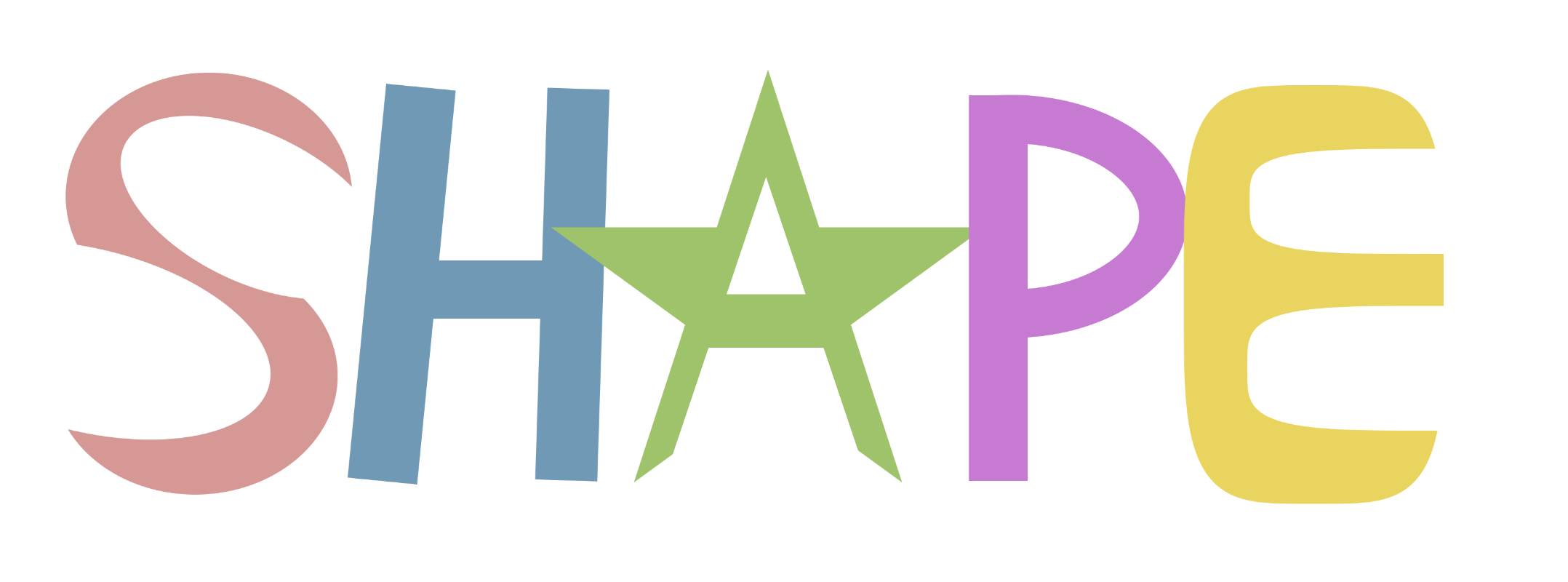
Download the source file: shape.mojavepaint
I wanted to do this sooner but my FreeTransformToolHandler.swift was 2700 lines of tangled layer-specific logic that made it very hard to add new transformable layer types. So I did a huge refactor and made everything polymorphic. Now new layer types just have to implement a few methods from the protocol, in particular func orientedBoundingBox() which returns essentially just an affine transform for a unit square, func bakePendingTransform() for applying the transform when you mouseup with the Move tool or hit Enter with the Free Transform tool, func hitTest() to support the Move tool's Autoselect feature, and a few others. Too nerdy? Sorry let me show you the product side.

The five pointed star is the icon for this new tool, select that and choose from one of the 5 available shapes: Rectangle, Ellipse, Squircle, Polygon, and Star. (Lines and other open paths aren't supported quite yet.)
These shapes get a fill color defaulting to the current foreground color and they optionally get a stroke. But unlike the Stroke layer effect which has to use a Signed Distance Field since it's working on arbitrary pixels, this stroke is working on true geometry so you get proper mitered corners. There's a sane miter limit naturally, but it's larger than many other graphics programs1 so you can make some very pointy stars.
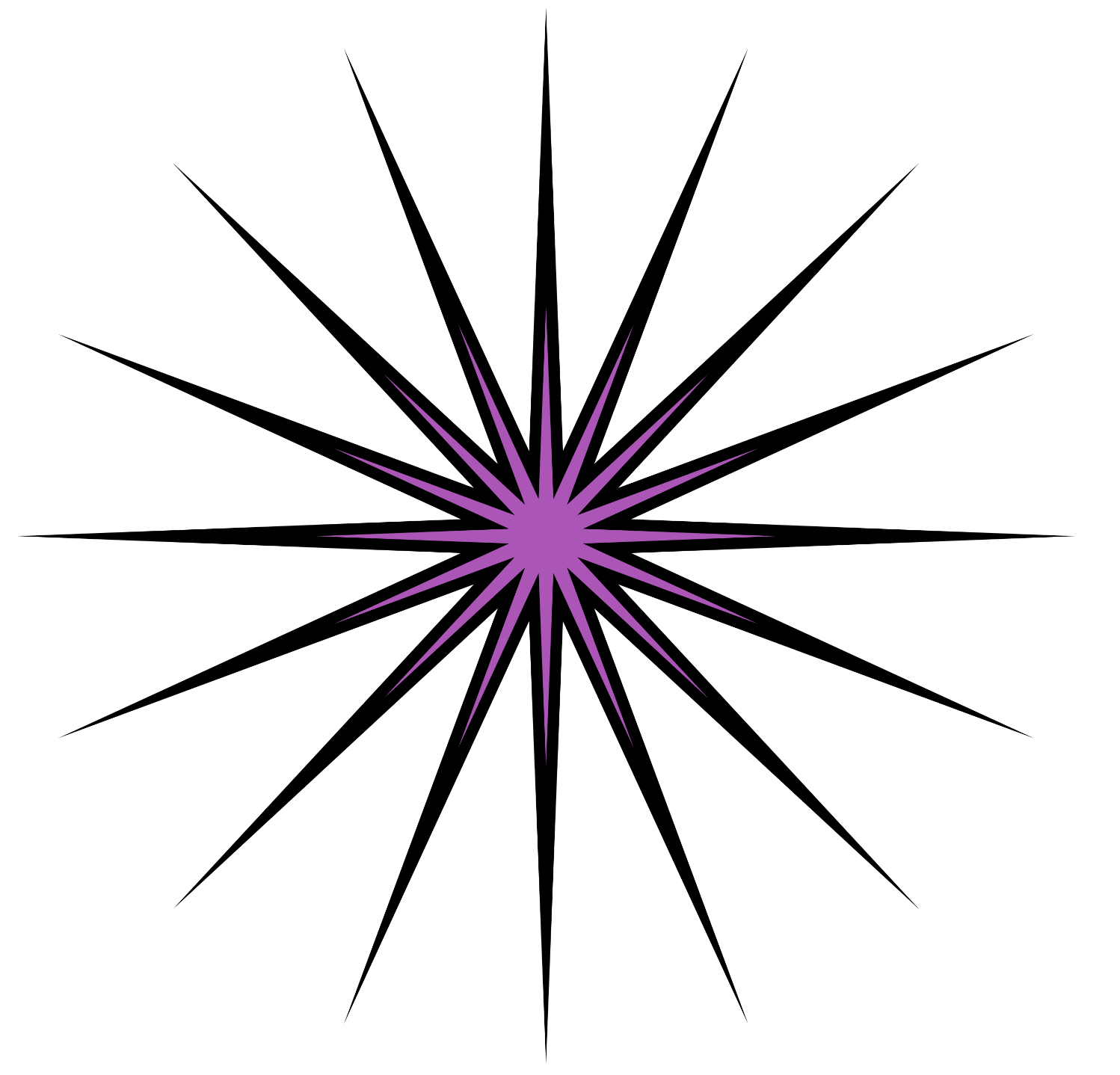
There are some special features only certain shapes get, such as a Corner Radius slider just for Rectangle, Star, and Polygon. And, since I expect it's common to want specific sizes for rectangles — say you're designing a webpage and you want a 1200px rectangle as your viewport for example — Rectangle shapes get text input boxes for width and height.
Other than that, Shape layers just inherit all the goodness you'd expect of any layer in Mojave Paint:
- Rasterize them
- Add Layer Styles to them
- Merge them Down
- Clip other layers to them
- Transform them with the Move and Free Transform tools
- Duplicate, change opacity, lock, hide/show, rename, drag to reorder, all that jazz
There is one other thing… Since each shape lives on its own layer and there's no way to combine these vector layers without rasterizing them, you end up with a lot of little layers. Folders help manage this, but keeping matching layer styles on them is going to be tedious. Which is why I'm happy to announce:
Layer Styles can go on folders now.
You could have dozens or even hundreds of shape layers in a folder and style them all together with the same color overlay or drop shadow, by styling the folder itself. Simply select the folder and hit the "fx" button in the layer tool button area. One caveat: Pass Through folders can't have styles, so change to Normal if you want to style the folder itself.
So yeah, this is quite a large release with the introduction of a new layer type and the addition of styleable folders. But be sure to check out all the other good stuff in the 1.7.0 release notes and please 🙏 do send feedback from my Contact page.
Footnotes
-
PDF spec for miter limit is 10 (points can only extend out 10 times the stroke width) but Mojave Paint is currently doing 50, for a minimum angle of 2.29 degrees. ↩