New feature: Smart Folders
tl;dr
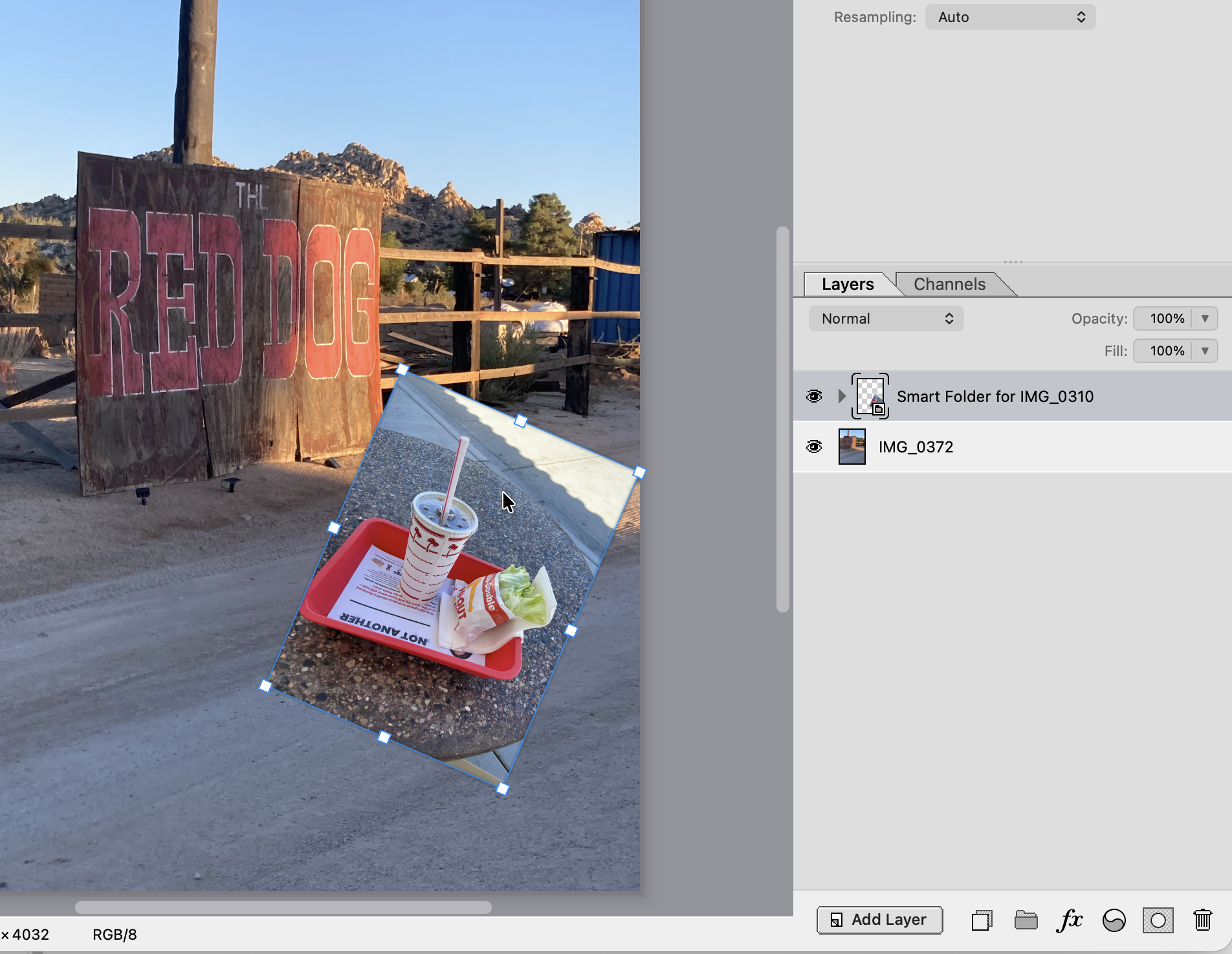
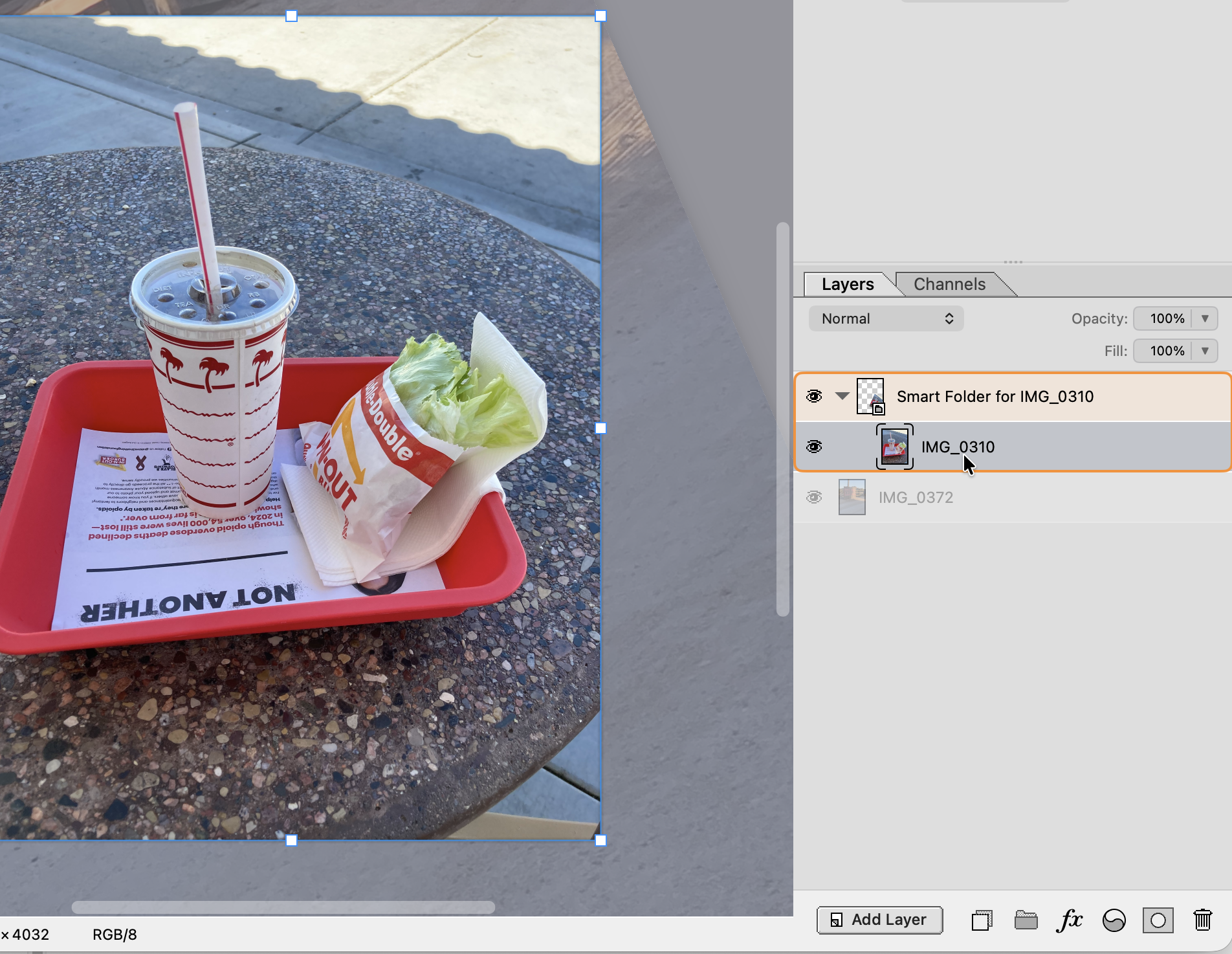
Today I'm announcing the launch of "Smart Folders" in Mojave Paint 1.9.0. They're a lot like Smart Objects, except instead of hopping into a separate document to view and edit the contents, it's all just inline. And when you drill down into one, the camera transforms to "square up" the view so you can see and edit the pixels at 1:1 scale.
Background
Different apps handle non-destructive transforms on pixel layers differently:
Affinity just always does non-destructive. But this means if you scale an image down 2x, each pixel has 4 pixels hidden behind it that you can never see no matter how far you zoom in. And if you paint on it there and zoom back out again, you'll see your brush stroke is all pixelated.
Krita does something different with Transform Masks, avoiding this mismatch between the resolution of the painting tools and the object's native resolution, but it does so in the weirdest way by letting you paint in pre-transformed space and showing the results in post-transformed space. Now the paint dabs are offset and scaled from where you dragged.
Photoshop, despite being so old, clearly has the best solution. Jump into a Smart Object and it opens as a separate document at its own identity transform, avoiding all the issues above. But it's a hassle to jump in and out of those documents, and to manage their canvas size as you add and remove elements.
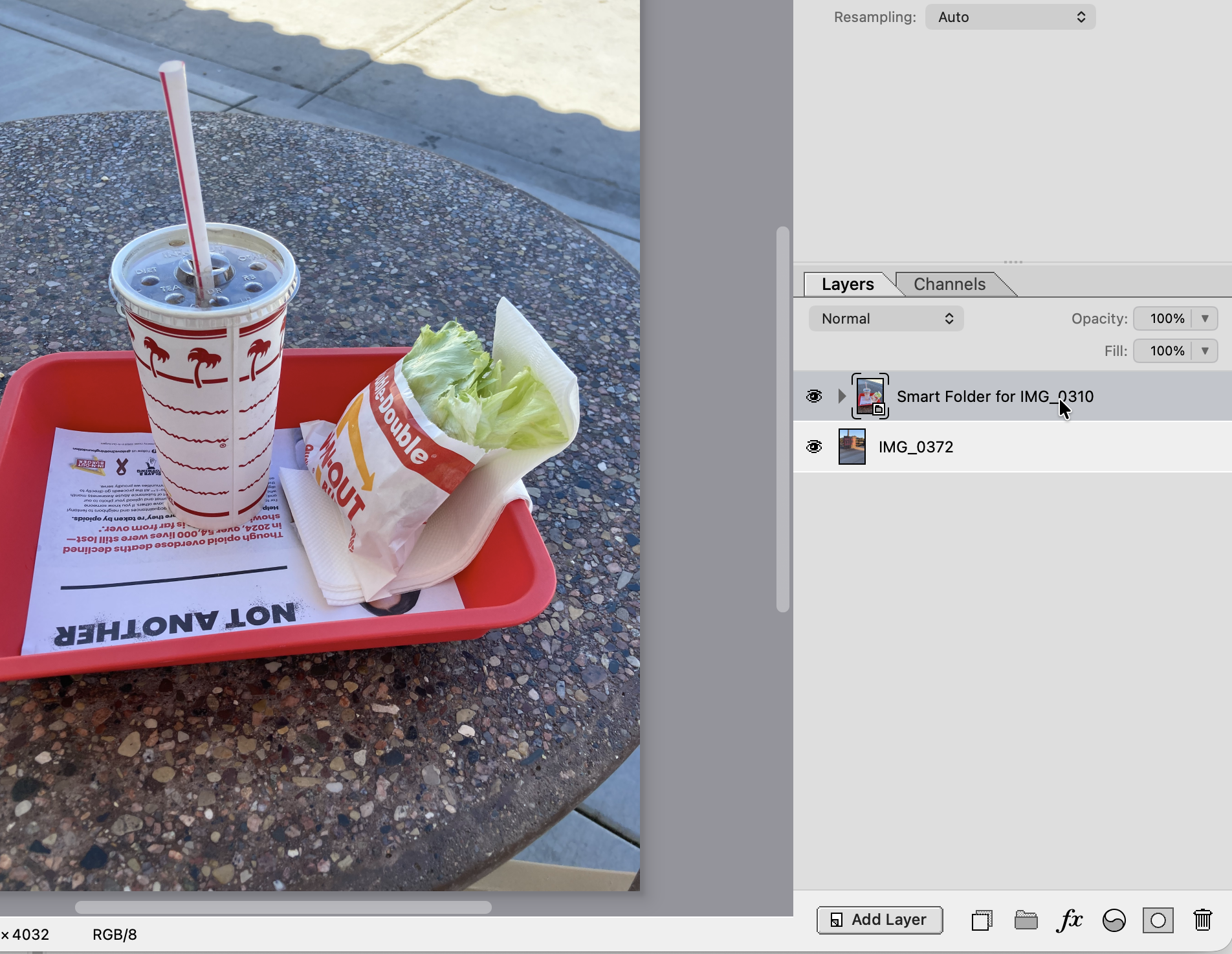
Mojave Paint's "Smart Folders" are very much like Photoshop's "Smart Objects" except the contents are shown as part of the same tree, no jumping into other documents needed. When you select a layer inside a Smart Folder, the camera view transforms to focus on that Smart Folder and the rest of the document is shown behind with the inverse of that transform. And it's done with a pretty nifty animation effect you'll have to experience for yourself.
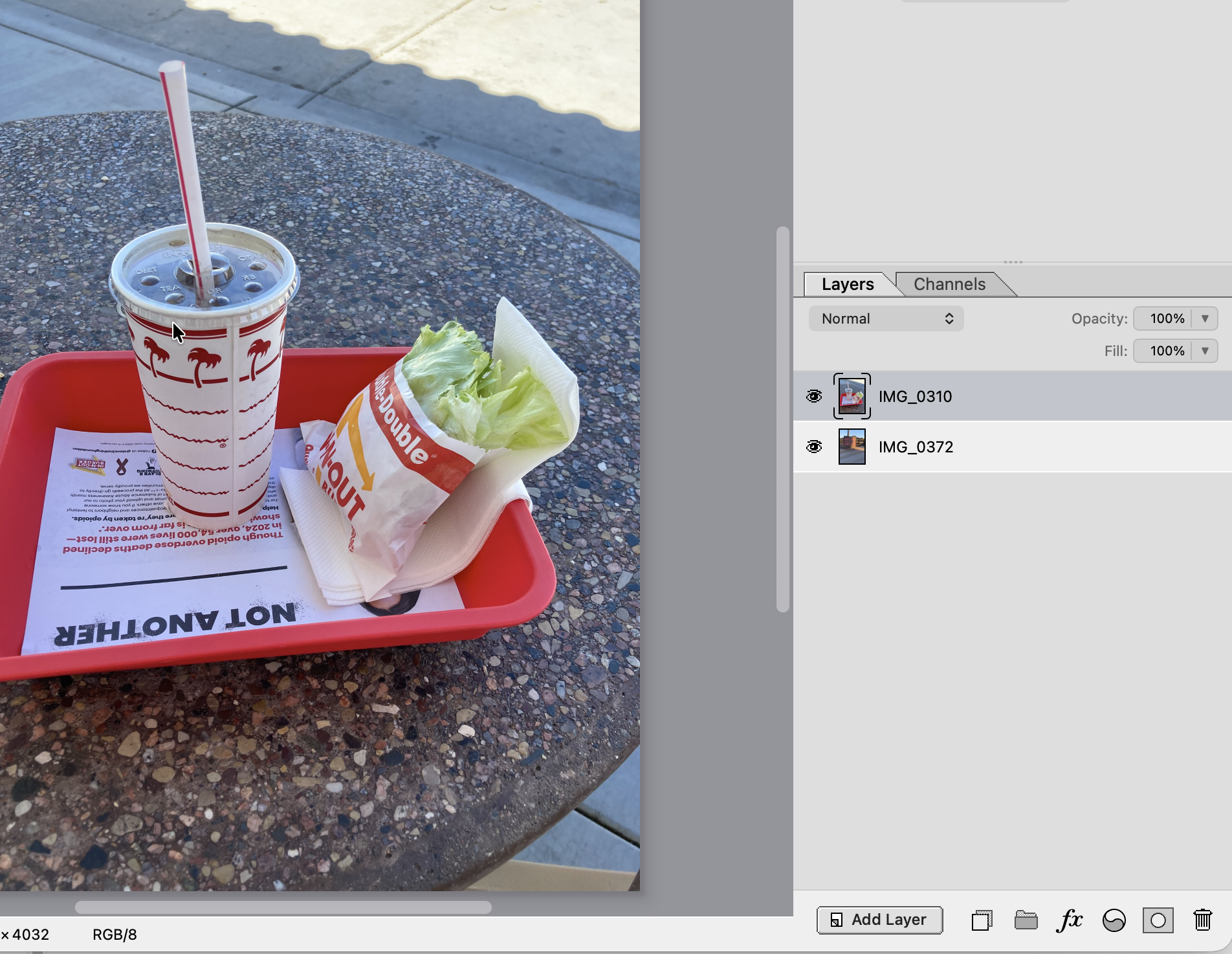
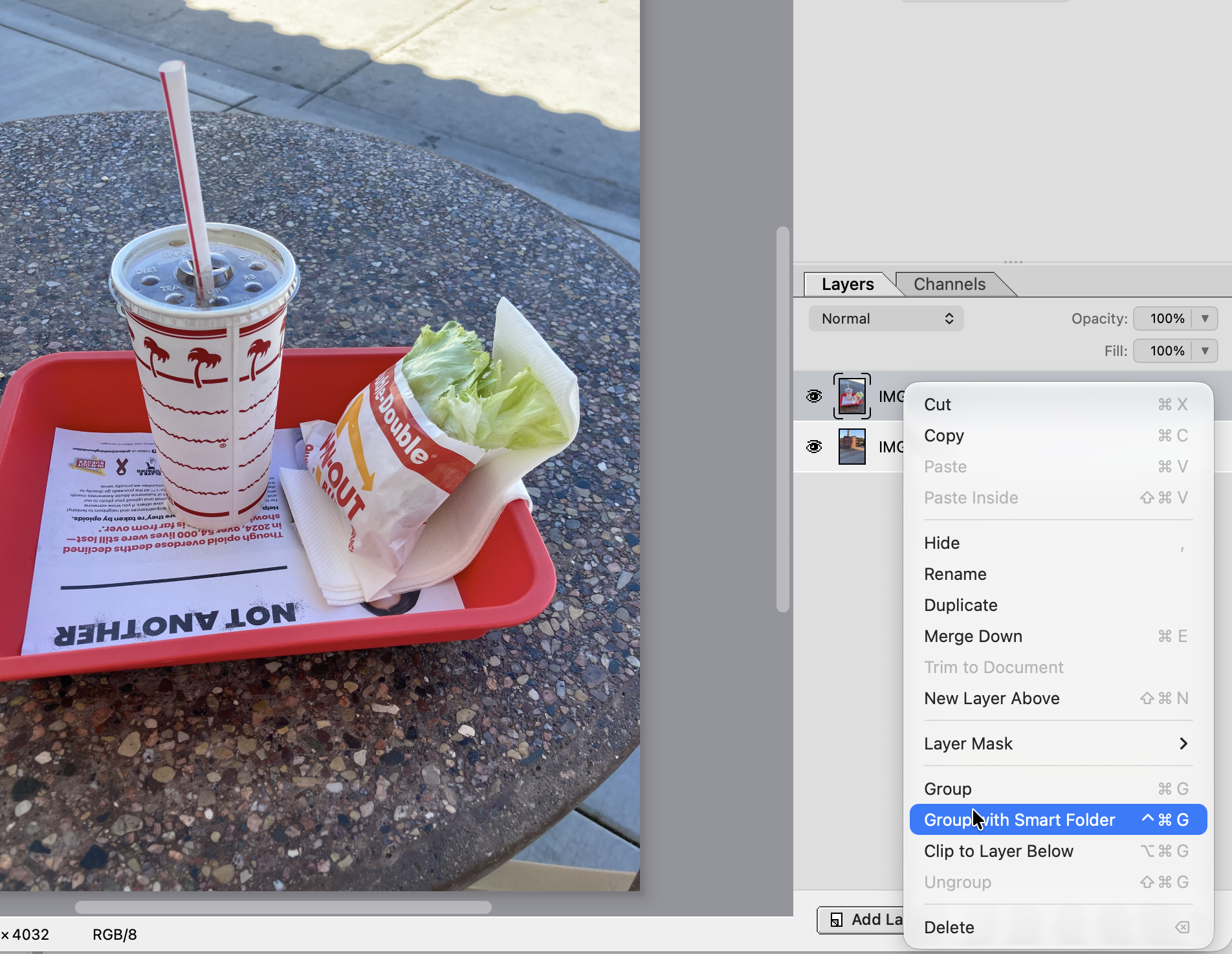
I don't want to put a video because you do have to see this first hand, but here's a static image sequence to give you an idea. Page through with the arrow keys.
But didn't this raise a whole lot of technical and design questions?
It sure did! How do you deal with shallowly-cloned Smart Folders that share their contents with another Smart Folder? How do you deal with the fact that, with no actual document inside there's no explicit canvas size inside? What do you do with rulers and guides? What happens if you try to use the Crop tool? These and many other things had to be ironed out to make this work.
But in the end I'm very happy with the result. For the common case of a single pixel layer that you want to resize without degradation, you can use "Group with Smart Folder" pretty much identically to how you'd use "Convert to Smart Object".
And unlike Adobe which (almost sadistically given how often it's used) doesn't give you a keyboard shortcut for "Convert to Smart Object", we give you one for our analogous operation — Control+Command+G. Control isn't the preferred modifier to use on a Mac but there is some precedent for using it when you've simply run out of modifiers, e.g. "Re-do last filter" being on Control+Command+F.
But anyway, this is just a teaser announcement not the full documentation. I'll be working on a full set of docs for Mojave Paint in the coming weeks and months.
