Five (more) things Mojave Paint does better than Photoshop
Well this is more like 25 of them. Sorry in advance for the long post.
Now that people are out there cloning Photoshop it's become even more important for me to explain how Mojave Paint is different (and in many ways better) than Adobe's finest. Let me outline the points first (in three groups) then go into detail below.
Substantive things I'd be exited to tell you about in an elevator
- Gradients have a "grain" interpolation mode
- Ctrl+Tab support
- Clear blend mode is available everywhere
- Recent document multi-select
- Better clipping masks
- Crop tool mouse wheel support in a locked viewport
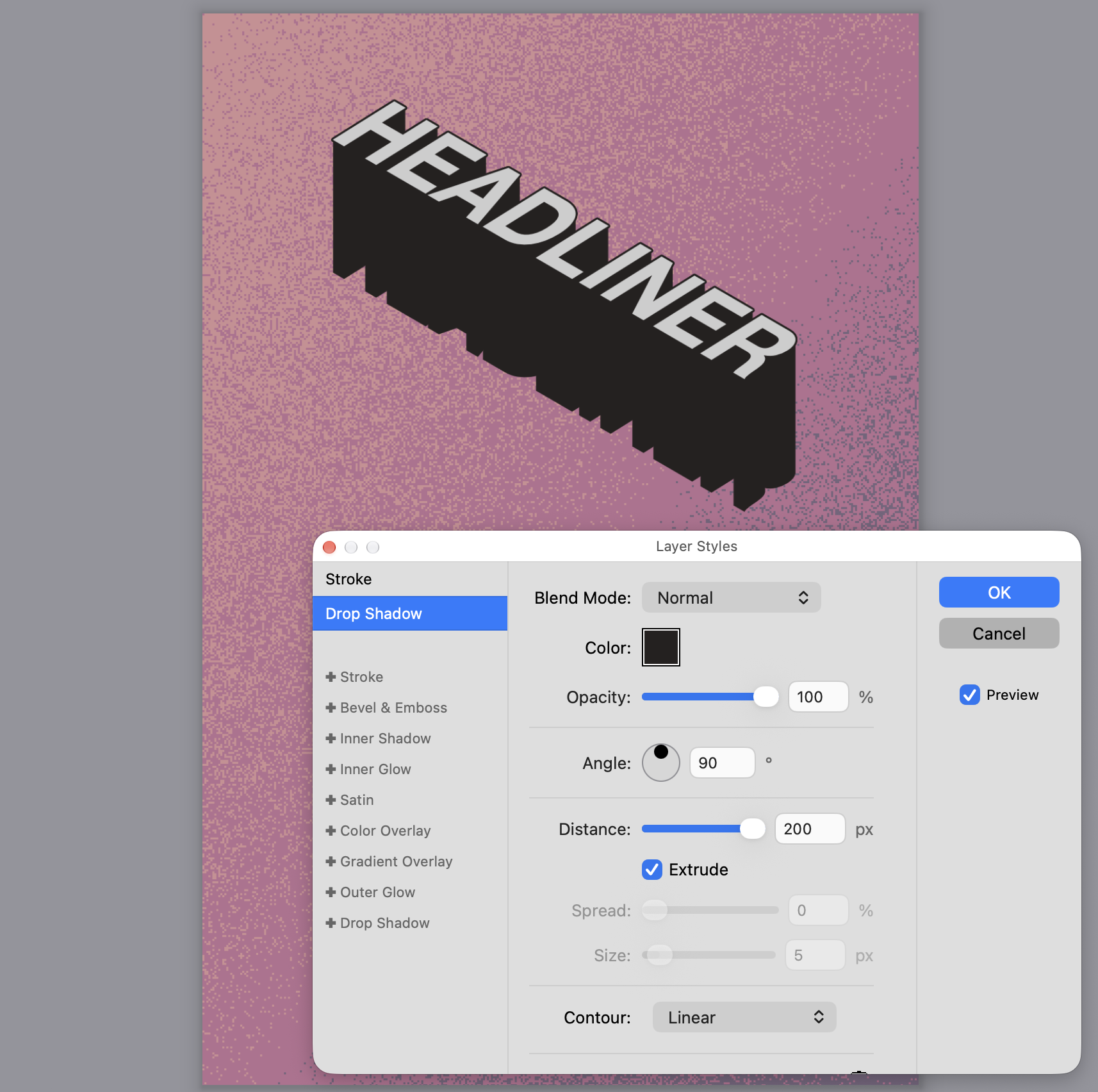
- Extrude option in Drop Shadow layer style
- Much better halftone filter
- Repeating last filter with Control+Command+F is interactive
- Tap shift to cycle the current tool in its slot
- Keyboard shortcut to hide/show transform controls with the Move tool
- Generally non-blocking UI (this one is repeated from the previous blog post)
Straightforward usability or graphical enhancements
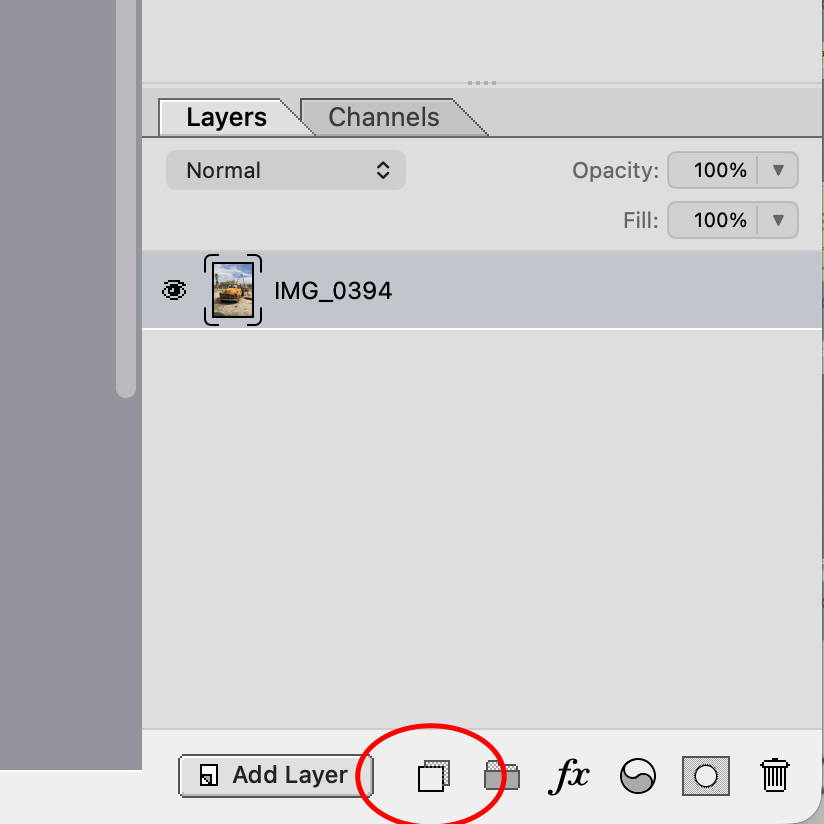
- Duplicate layer button
- Edge handles stretch instead of scale
- The advanced fill window has a Preview checkbox
- Brush defaults to Normal Linear blend mode
- You can easily make a selection from a layer's luminance
- Keyboard shortcut to expand/collapse the selected folder
- Double-click the label on layer Opacity or Fill to flip it between 100% and 0%
- On a Type layer, selecting none is the same as selecting all
Hyper-trivial and/or obscure
- Shift+Option+Square Bracket in opposite direction shrinks instead of growing the other way
- Command+J duplicate with multiple disparate layers puts the copies by each group
- Smoother scrubbing on type kerning
- Single-click to edit a layer style
- YIQ mode for hue/saturation adjustment
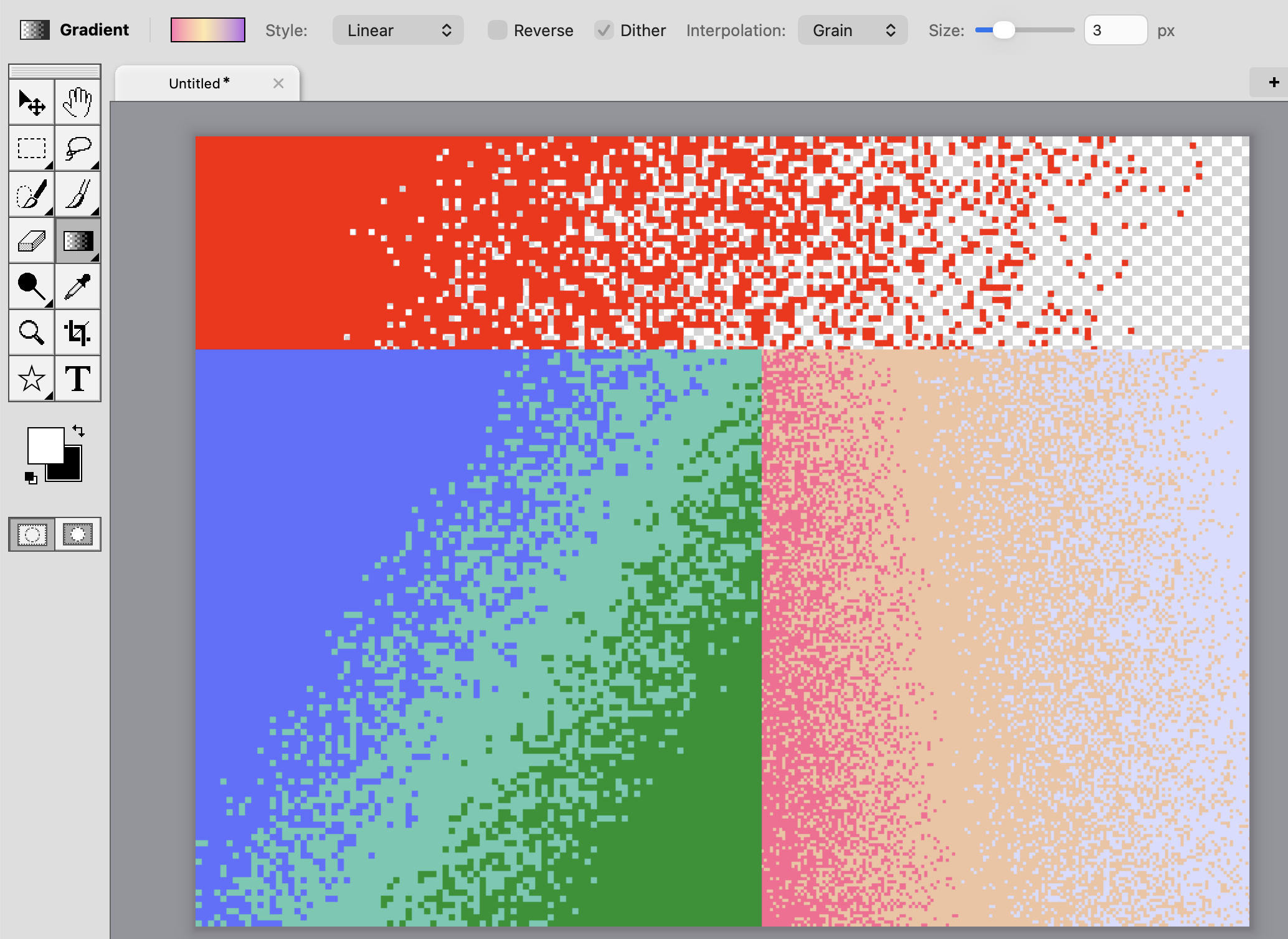
Gradients have a "grain" interpolation mode
It's not a real interpolation mode of course, because it's not actually mixing colors together — it's picking between two color stops for each speck of grain in a probabilisitic fashion. But I threw it in with the interpolation modes for convenience.
Whatever you call it, it's pretty cool and makes some novel looking gradients. It even works with opacity stops, so you can have a "red to red" gradient that fades out with a transparent speckle, for example.
Ctrl+Tab support
Strong opinion alert: Ctrl+Tab should always open the most recent tab, not the tab to the right. Because moving back and forth between a small set of documents is a very common operation. IDEs do this, Firefox does this, and Mojave Paint does this too.
More specifically, Ctrl+Tab should step backwards through the recent tab history, one step per Tab, putting whatever tab you land on at the top of the history (but not the tabs you saw along the way.)
Clear blend mode is available everywhere
You may have noticed that the Brush tool (in Photoshop and in Mojave Paint) has a Clear blend mode, accessible in the dropdown or by holding the backtick (`) key. In Photoshop that's only available in the brush tool while in Mojave Paint you can use it everywhere. Why would you want to?
Check out this YouTube demo. He's has a white rectangle with a text shape cut out of it, that's overlaying a photograph. He makes the type layer and selects its outline by Command-clicking it, then adds a layer mask to the rectangle using that selection. This does work but the type is no longer editable in that scenario.
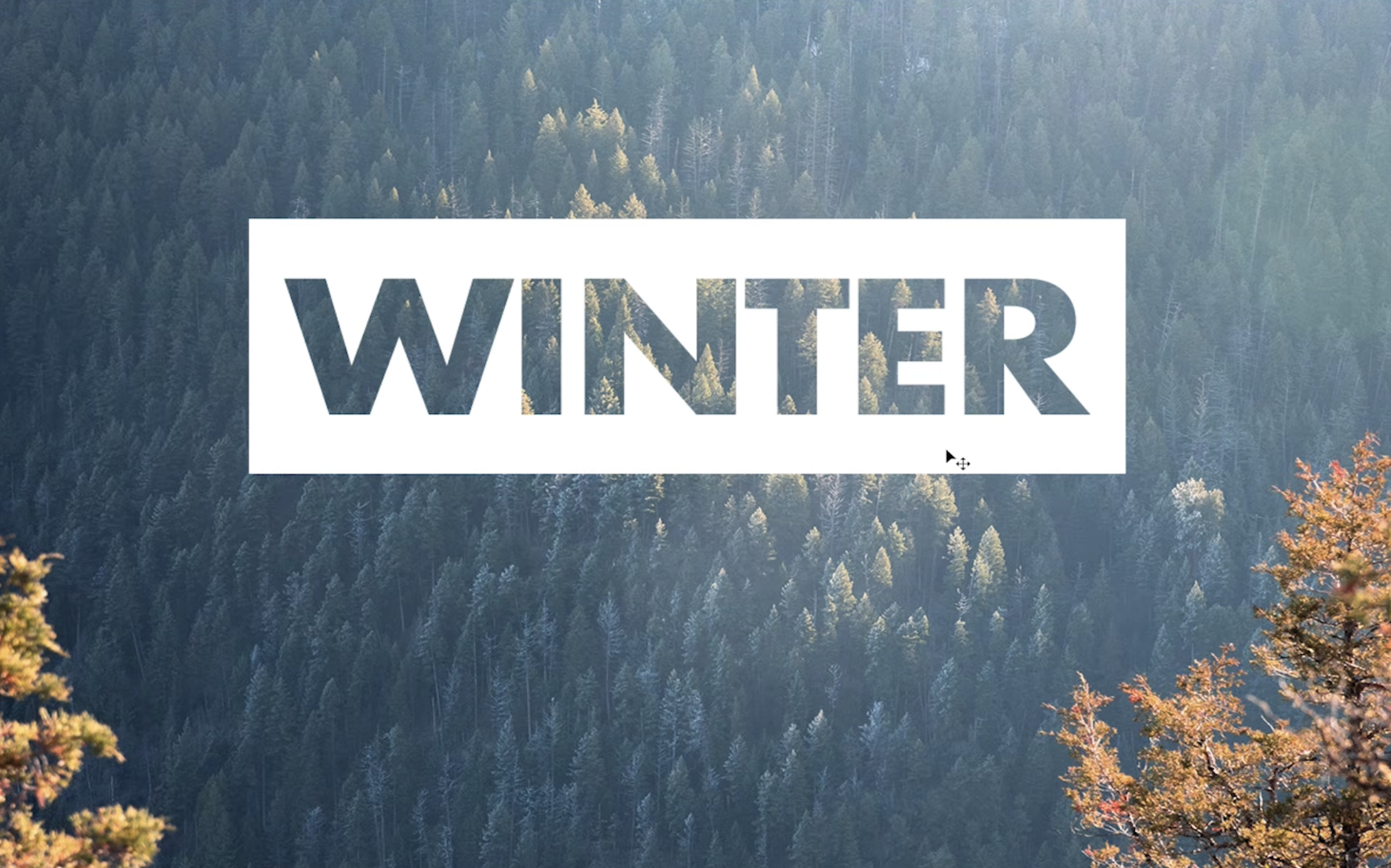
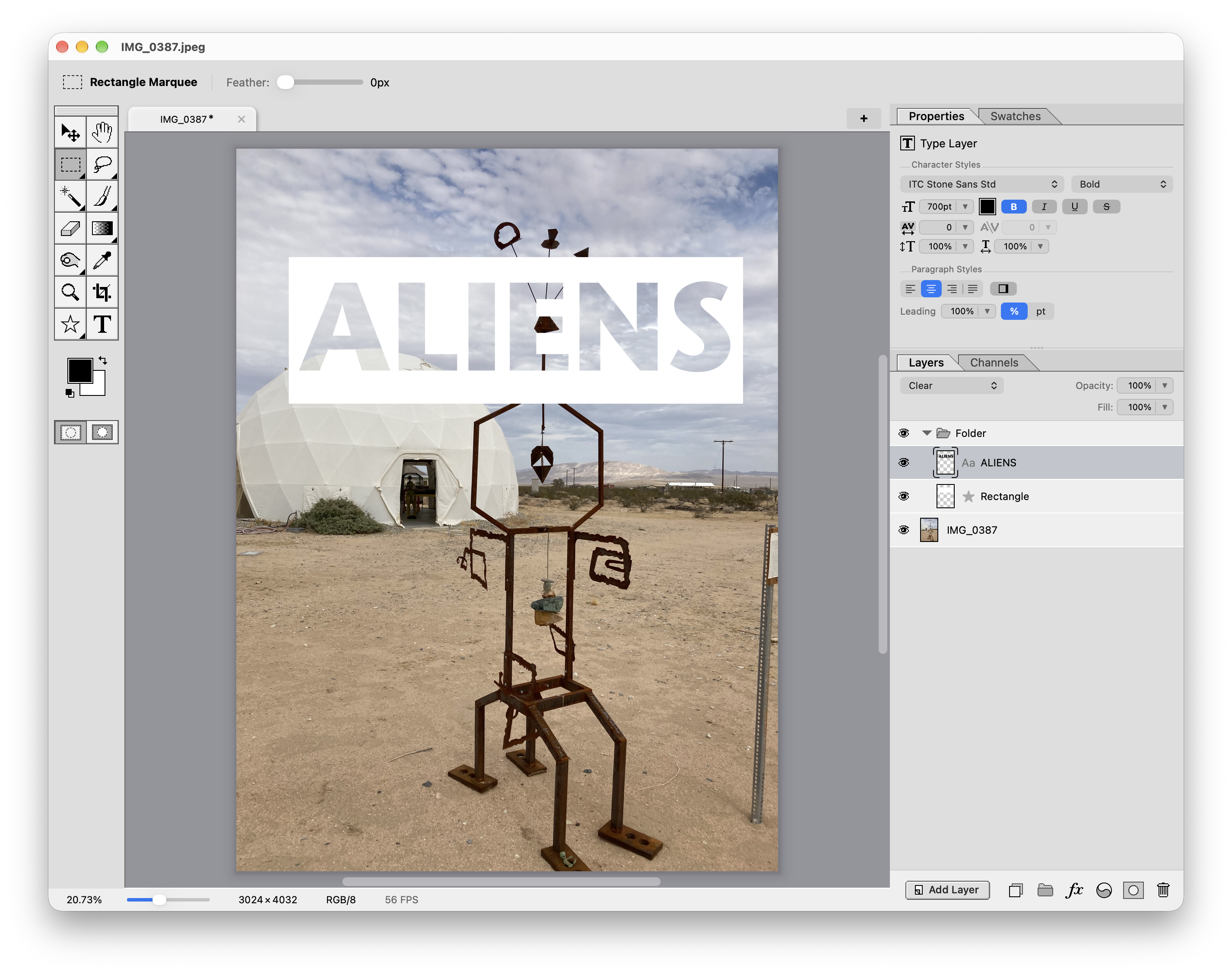
In Mojave Paint you'd just put the rectangle and the type layer in a folder, with the type on top, and set its blend mode to "Clear" so it cuts a hole in everything below it. Easy peasy and the type remains editable.
(It helps that our folders default to Normal blend mode instead of Pass Through like Photoshop's do, but that's another topic.)
Recent document multi-select
The "Open File" dialog allows multi-selection of course, but so does the Recent Documents view on the welcome screen. Command-click or drag a rectangle over them to select multiple documents, then click any in the set to open them all.
Better clipping masks
Mojave Paint has a really sweet clipping mask solution, taking some of the best ideas of Photoshop and Affinity Photo but I think it's more powerful than either one.
See the full blog post on this topic.
Crop tool mouse wheel support in a locked viewport
On the surface, Mojave Paint's crop tool looks like any other app's crop tool. Drag a rectangle to define your crop area and hit Enter to apply.
But there's actually a lot more going on in there. Try this: activate the crop tool, and notice the viewport pan and zoom are locked (managed for you.) This is for two reasons: so we can zoom out to fit the entire document when you rotate, and so we free up the scroll gestures (mouse wheel normally if you're on a desktop) for other functions.
Now try the mouse wheel, notice it grows and shrinks the crop area while maintaining the aspect ratio. Now try shift + mouse wheel and notice it rotates. Now for maximum affect, turn off the "rule of thirds" grid lines and change the mask color to black.
Using the tool in this way, which I'd call "artistic reframing mode," you can really visualize how your crop will look. Here's a demo:
Extrude option in Drop Shadow layer style
You can approximate this in Photoshop by adding like 20 different drop shadows but in Mojave Paint you get real "long shadow" styles with a single checkbox.
Much better halftone filter
The Halftone Pattern filter in Photoshop's Filter Gallery is surprisingly crude and difficult to use, and Mojave Paint tops it by a mile. Frustrations include:
It pre-populates with the current foreground and background colors, but because Photoshop's UI is all so annoyingly modal, you can't change the colors while the window is open. There's apparently no way to change the angle of the dot screen or the lines. There's a contrast slider but rather than affecting the tonality, i.e. making the Euclidean dots more filled in or less filled in, it seems to be doing a blend with the background which is hardly useful to anybody. And there seems to be no way to make the background or foreground color transparent, as you'd want to represent only the "ink" part of the halftone (letting the layer behind be the "paper.")
Mojave Paint does all this and more. This deserves its own blog post for sure.
Repeating last filter with Control+Command+F is interactive
I really like how Photoshop has a Control+Command+F shortcut and a menu item (first item in the Filter menu) to repeat your last filter operation. But I don't like how it runs silently with no chance to see or review what the options were set to.
Mojave Paint uses the same command but it re-opens the last used filter, pre-populated with the last used options. Just press OK or hit Enter to apply the same as before, or adjust them and apply, but at least you can see what's going on.
Tap shift to cycle the current tool in its slot
In Photoshop, as in Mojave Paint, the tools are grouped together into tool slots. M for example holds the Marquee tools of "rectangle marquee" and "ellipse marquee." Pressing M goes to the last used tool in that slot, and to cycle through them you either double-tap M, or you do Shift+M. Same for other slots, like W has the Wand tool and other selection tools.
But sometimes you want to cycle the tool without thinking about what current shortcut is. You're on Dodge and you want Burn, or vice versa? In Mojave Paint just tap Shift and it cycles whichever tool slot you're in. No thinking needed! That should be our motto.
Keyboard shortcut to hide/show transform controls with the Move tool
When using the Move tool, especially with small shapes, those transform handles can get in the way, so it's important to have an easy way to hide them. Easier then checking and unchecking "Show Transform Controls" constantly.
In Mojave Paint, just hold the Backtick key. This is one of those nice little details I hope Adobe borrows from Mojave Paint. Read more about this in the 1.8.1 feature highlight post.
Generally non-blocking UI
This is a repeat from my first "vs Photoshop" post, where I talk about how you can refine a selection while the adjustment and filter windows are active. But there's other reasons why this matters.
In Photoshop, say you have duplicate layers and you open an adjustment window but it's not doing anything. Oops, you accidentally had the bottom layer selected (covered by the duplicate). You go to hide the layer above but you can't because you literally can't do anything else when an accessory window is open. Mojave Paint does better.
Or another example, in Mojave Paint you can open the color picker and just leave it open, like Bob Ross dipping back into his palette. (Admittedly this use case would probably be better served by an inline color picker, maybe in the current Swatches panel, and that's probably coming, but still.)
Duplicate layer button
It's a common operation, it deserves a button.
Edge handles stretch instead of scale
Dragging a corner and having it scale proportionally feels right. But dragging an edge, intuitively, one expects that to stretch. Having it also scale proportionally but centered on that one axis just feels weird. Of course both corners and edges can do the opposite of their respective defaults by holding Shift.
The advanced fill window has a Preview checkbox
Krishna was showing me how he sometimes paints by drawing shapes with the lasso and filling them in. Having a Preview checkbox allows one to see the color before applying, even dragging on the color picker with continuous updates. And, since it behaves like any other adjustment or filter, you even get the "Hide Ants" feature in the title bar so you can see your shape applied cleanly.
Brush defaults to Normal Linear blend mode
See the Normal Linear Blend Mode blog post
You can easily make a selection from a layer's luminance
Just use Select > Luminosity. There are ways to do this in Photoshop but none are this straightforward.
Keyboard shortcut to expand/collapse the selected folder
Option + Square Bracket navigates the layer selection up or down, so it's only natural to also have a shortcut to expand and contract folders. I chose Option + Backslash because it's right next to that other command (at least on US keyboards.)
Double-click the label on layer Opacity or Fill to flip it between 100% and 0%
See the 1.8.1 feature highlights.
On a Type layer, selecting none is the same as selecting all
In most text editing systems, placing the cursor and changing the formatting options "preloads" that formatting change for the next thing you type. To change the formatting of something you've already typed you have to select it first.
Mojave Paint behaves differently, treating no selection the same as "everything selected." This means you can type some text leaving the cursor at the end and change the formatting to apply it to the whole layer. No need to do a Select All and as a side benefit you can see your style updates unobscured by the text selection style.
Shift+Option+Square Bracket in opposite direction shrinks instead of growing the other way
In Photoshop, Shift + Option + Square Bracket grows the layer selection up or down, but doing the opposite doesn't shrink it as you'd expect (and how the Finder works with Shift + up/down arrow).
Command+J duplicate with multiple disparate layers puts the copies by each group
In Mojave Paint, if you Duplicate a set of non-contiguous layers, the copies are grouped together above each "island" in the selection, like a "unified diff" view in source control. Photoshop seems to just clump all the duplicates together on top, ignoring the gaps.
Smoother scrubbing on type kerning
When you're kerning letter pairs in big display type, you'd generally do it by eyeballing it. And the best way to do that is scrubbing the label. But Photoshop moves in chunky 10 degree increments, making it hard to get the kerning looking exactly optically perfect. In Mojave Paint you get 1 degree increments. (I say "degree" but really it's a 1000th of an em.)
Single-click to edit a layer style
One Mojave Paint design principle is "be lazy" and you'll find many examples of this throughout the app (for example you can simply press Escape to clear the selection in addition to the Photoshop way of Command+D), and here's one more example of that: A single click on a layer style row opens the style window. Double-click if you want the finger exercise but a single click will do.
YIQ mode for hue/saturation adjustment
This lets you change hue without making huge brightness changes. Also, if you have a soft brush stroke in one saturated color on top of another saturated color, shifting the hue in traditional HSL mode can give it a weird halo effect that YIQ mode avoids. My recommendation is just to try them both and see what looks best, always nice to have more options.
I'm not an expert level Photoshop user so feel free to send corrections if I unfairly judged on any of these points. Big things are coming soon in Mojave Paint, my answer to Smart Objects, stay tuned for that!